
felt tip inc.

Run 5k

Available on the App Store

Support

Send questions and comments to run5k@felttip.com.

Facebook

Share your experiences with other users on the Run 5k Facebook page.

Run 5k apparel

T-shirts and tank tops
now available in the Felt Tip Spreadshirt Store.

Stretches

Reviews

I just wanted to let you know that your app has helped change my life. Your app allowed me to become a runner without hurting myself. I now run 5 to 10k every other day. I have tried them all, I recommend yours to everyone I know. Thanks!
— denisguitard

Easy to understand and very user friendly, this program is great for beginners. You see your improvement without feeling like you can't keep up. Just the right level and progress for me! And it's compatible with Nike+ too!
— sonik_tooth

This is a great app. I thought it would be impossible to run 5 minutes let alone for 30, this week by week programme builds you up and you surprise yourself at what you achieve. Thanks so much.
— RachelLM

Felt Tip news

Join our mailing list.

Wood grain patterns based on images by
Sue Chastain and About Graphics Software.

Legal Disclaimer

This app and any information given by it or by Felt Tip Inc are for educational purposes only. They are not intended nor implied to be a substitute for professional medical advice. You should always consult your healthcare provider before beginning any fitness program.

Our other apps

Run 10k icon
Run 10k
13-week run-walk
10k workout program
for iPhone

tuna pitch icon
Tuna Pitch
chromatic tuner
and pitch pipe
for iPhone

paint icon
C64 Paint XL
8-bit paint program
for iPad and iPhone

Transit Maps icon
Transit Maps FREE
offline map image
and PDF viewer
for iPad and iPhone

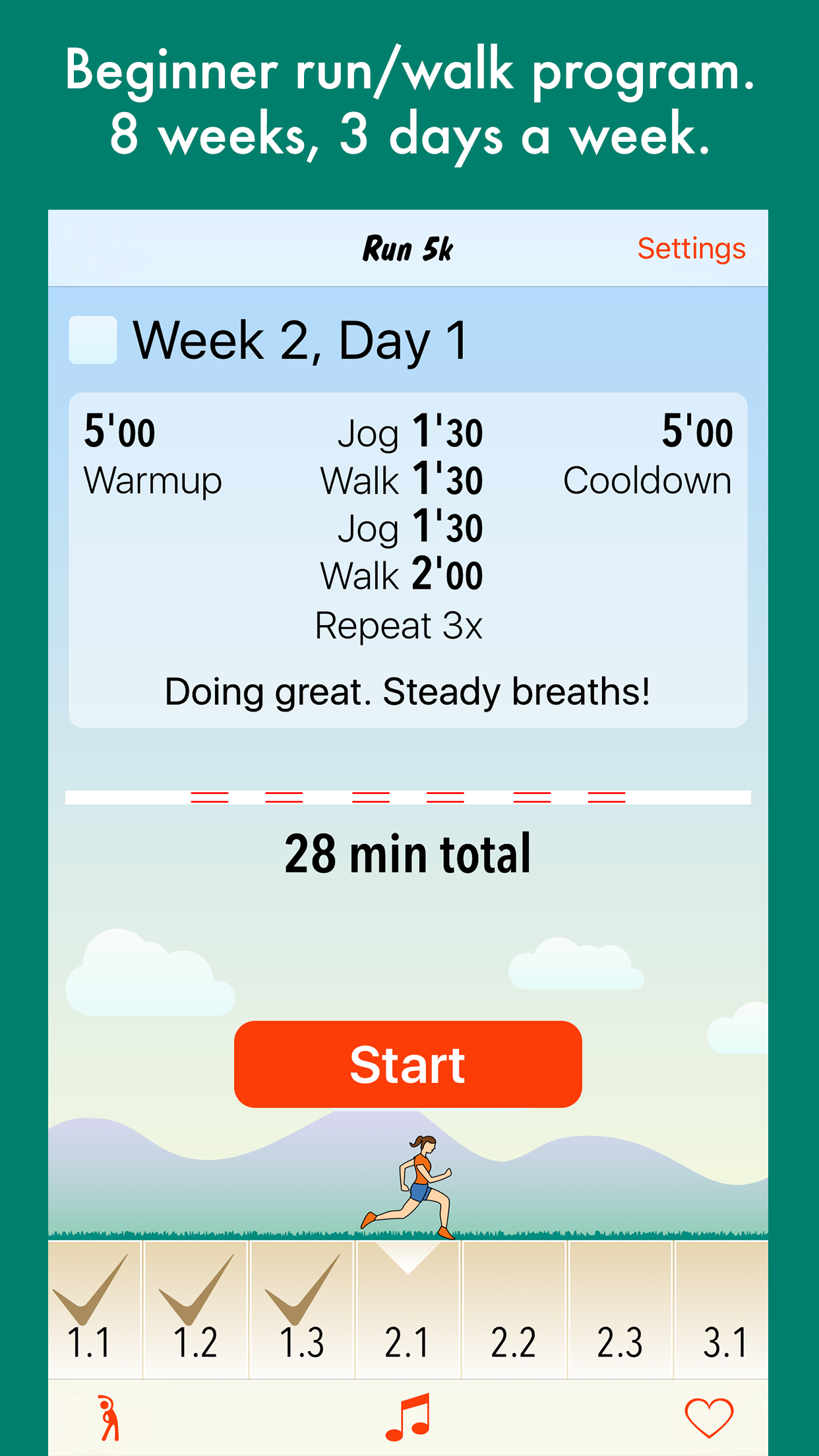
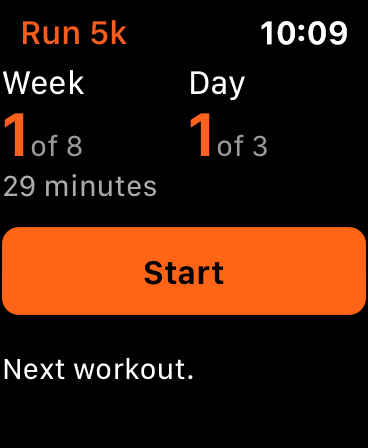
Run 5k is an app for your iPhone or iPod touch that helps get you into shape using an 8-week, 3-days-a-week workout program created by Felt Tip, Inc. With this app, you'll be able to run a full 5 km or 3.1 miles.
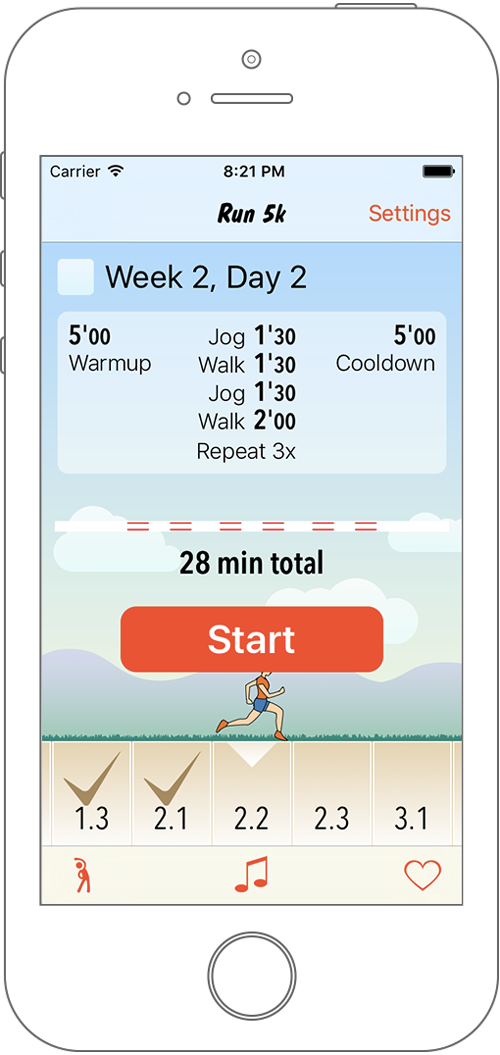
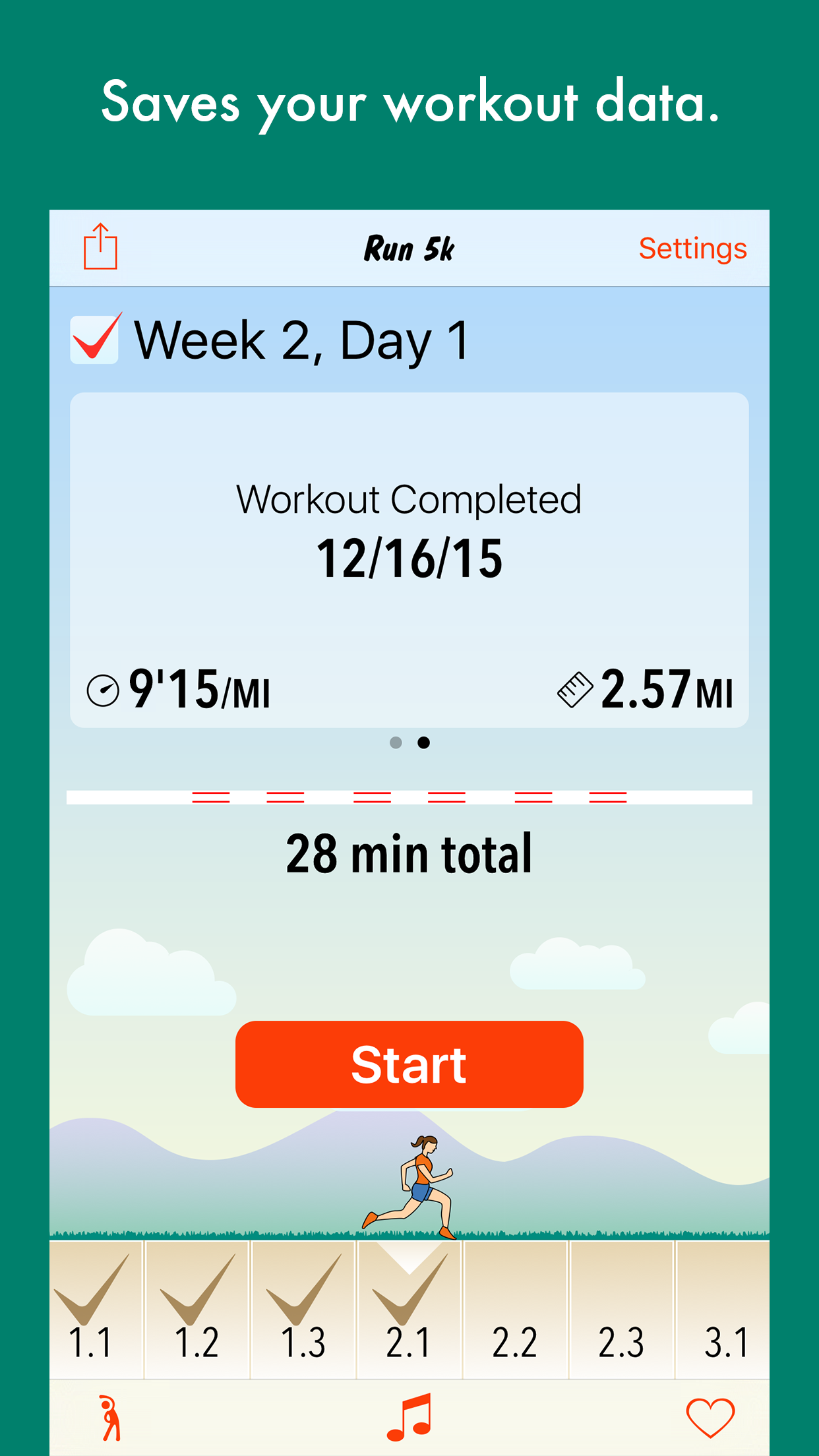
The first workout. Start here.
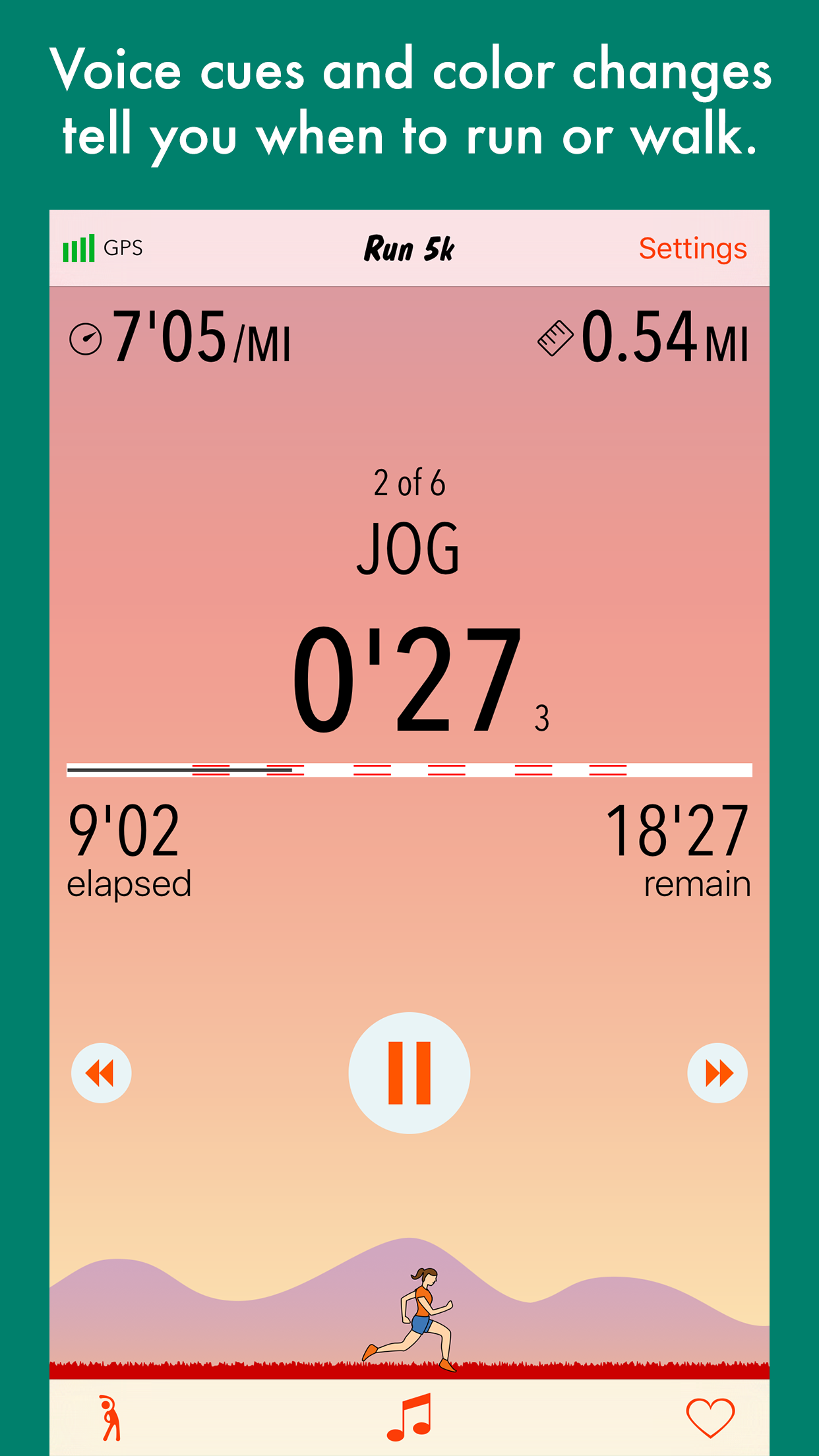
Illuminates in red during
the jogging interval.
Green during the walking interval.
Tell your friends about your completed workouts on Twitter and Facebook.
Settings in the app.

Use your own playlists for music or play podcasts in the background to keep you motivated during the workout.

Use Nike+ to record your miles or km in the background.

Run 5k will tell you when to switch between walking and jogging using voice prompts and/or beeps, even if you have music and Nike+ in the background.

Turn off your screen with the power/lock button at the top of the device, and the app will keep going with your music in the background. If you want to switch to another app, you'll get pop-up notifications that tell you when to switch between walking and jogging.

Control your music from within the app using a built-in Music control tab that's connected to the iPod features of your device.

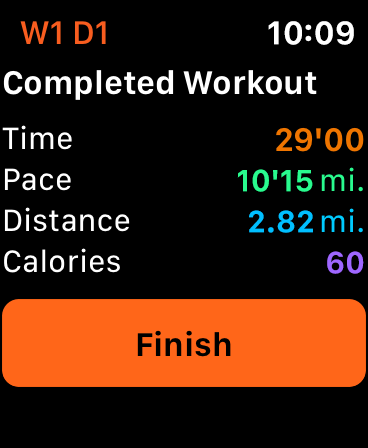
Share your completed workouts on Twitter and/or Facebook.

About the workouts

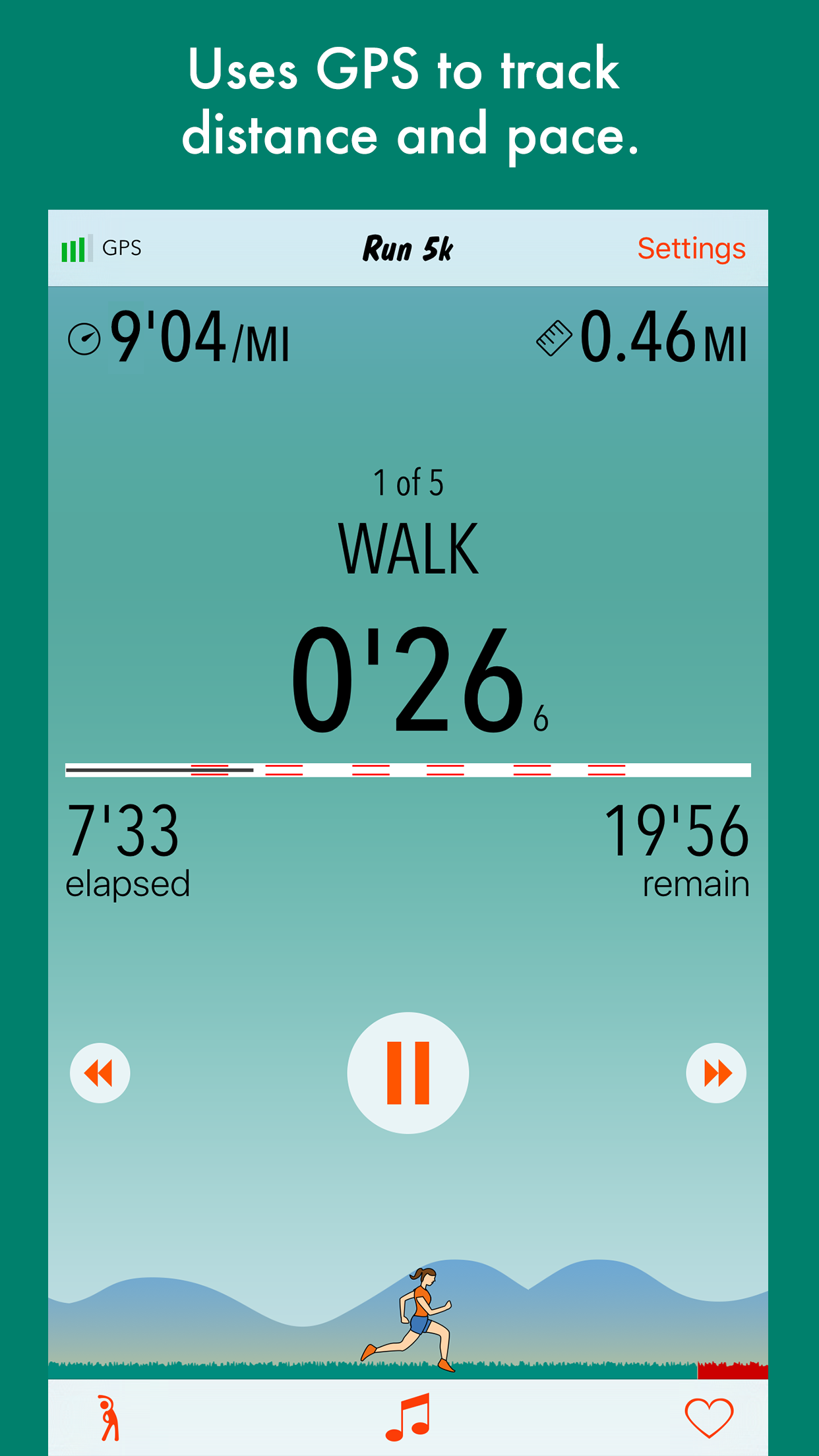
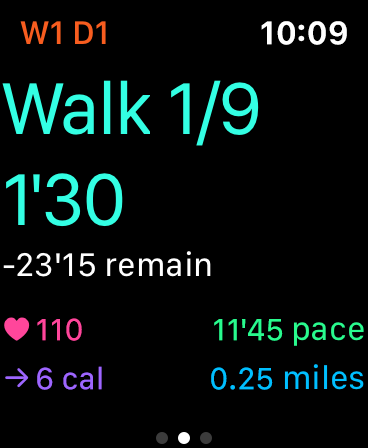
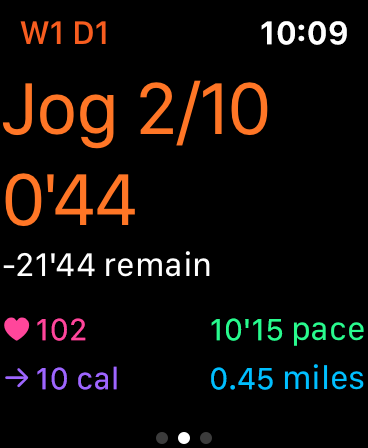
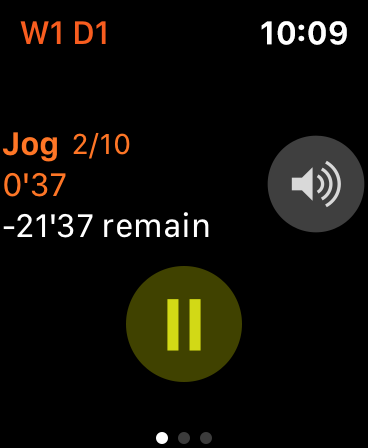
Every workout begins with a 5-minute warmup (walk or jog), about 20 to 30 minutes alternating between jogging and walking, and a cooldown of 5 minutes. The app has audio and visual cues for each interval and shows elapsed time, time remaining in the workout, and time to the next interval.

With this app, you will slowly build up your strength and endurance so that your body can get used to running longer distances. If you start off pushing yourself too hard, you risk having your body react negatively, making it harder to stay with the program.

Make sure you have a rest day after each workout to let your body recover. Muscles need to heal and they need rest to do that. Maybe do low-impact walking or cross-training to work different muscle groups if you want to keep working out. Avoid the temptation to skip ahead or lump all the workouts in one weekend: a sure recipe for soreness and unhappy workouts.

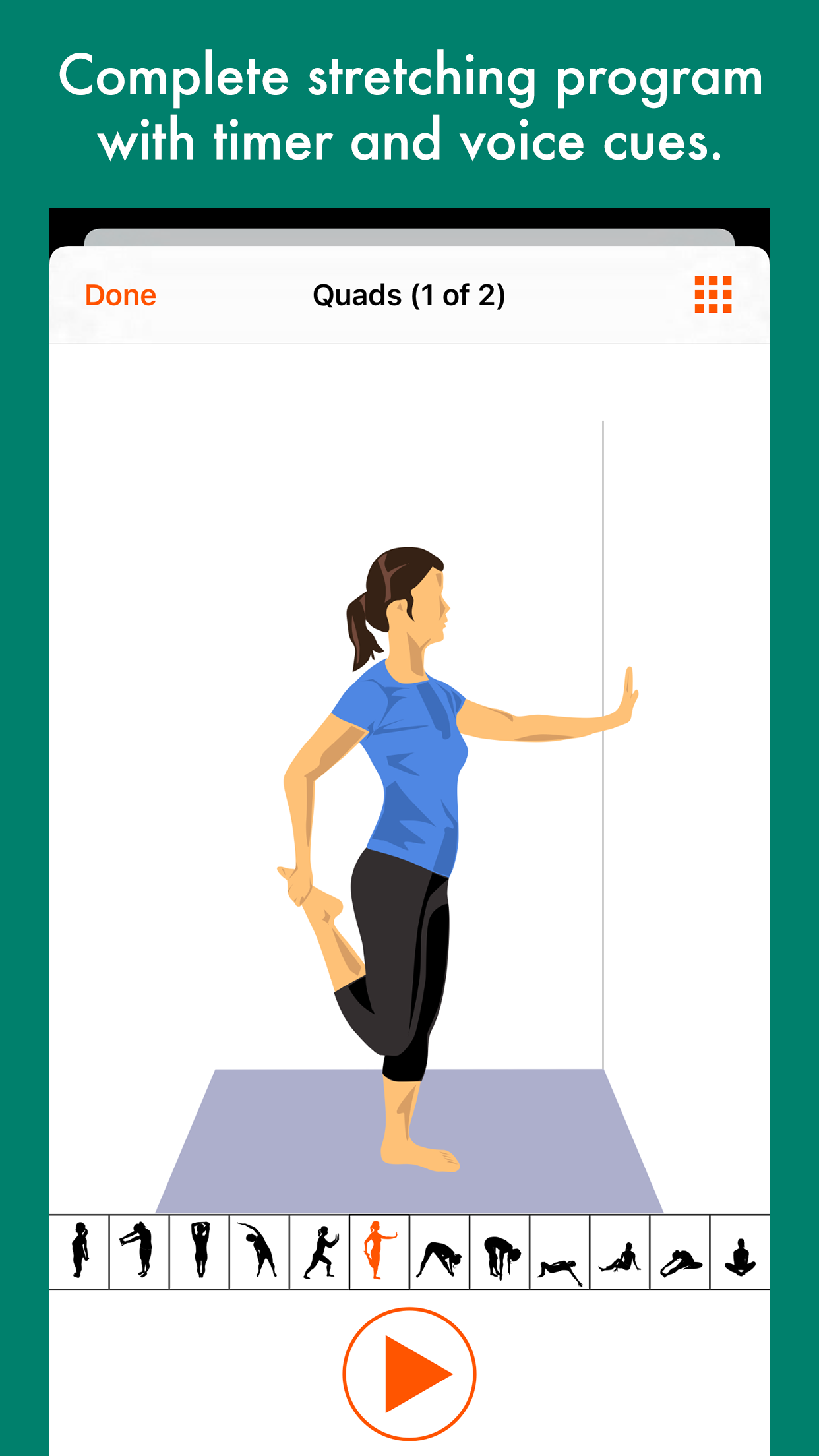
Stretch your muscles before and after your workout to avoid injury and muscle soreness. Stretch your muscles to the point of resistance, but not pain, and hold each position for 15 to 30 seconds: do not bounce. A chart of stretches is included on the main screen.

Schedule

Week Day 1 Day 2 Day 3
1 Jog :45,
Walk 1:30,
Jog :45,
Walk 1:00,
5 times.
Jog :45,
Walk 1:30,
Jog :45,
Walk 1:00,
5 times.
Jog :45,
Walk 1:30,
Jog :45,
Walk 1:00,
5 times.
2 Jog 1:30,
Walk 1:30,
Jog 1:30,
Walk 2:00,
3 times.
Jog 1:30,
Walk 1:30,
Jog 1:30,
Walk 2:00,
3 times.
Jog 1:30,
Walk 1:30,
Jog 1:30,
Walk 2:00,
3 times.
3 Jog 2:00,
Walk 2:00,
Jog 3:00,
Walk 2:00,
2 times.
Jog 2:00,
Walk 2:00,
Jog 3:00,
Walk 2:00,
2 times.
Jog 2:00,
Walk 2:00,
Jog 3:00,
Walk 2:00,
2 times.
4 Jog 3:00,
Walk 2:00,
Jog 4:00,
Walk 2:00,
Jog 5:00,
Walk 3:00.
Jog 3:00,
Walk 2:00,
Jog 4:00,
Walk 2:00,
Jog 5:00,
Walk 3:00.
Jog 3:00,
Walk 2:00,
Jog 6:00,
Walk 3:00,
Jog 4:00,
Walk 2:00.
5 Jog 5:00,
Walk 2:00,
Jog 7:00,
Walk 2:00,
Jog 5:00,
Walk 1:00.
Jog 5:00,
Walk 2:00,
Jog 8:00,
Walk 2:00,
Jog 2:00.
Jog 8:00,
Walk 2:00,
Jog 10:00,
Walk 2:00.
6 Jog 6:00,
Walk 1:00,
Jog 12:00,
Walk 2:00.
Jog 10:00,
Walk 1:00,
Jog 8:00,
Walk 2:00.
Jog 20:00.
7 Jog 15:00,
Walk 2:00,
Jog 5:00.
Jog 20:00,
Walk 2:00,
Run 1:00.
Jog 22:00,
Walk 1:00,
Run 1:00.
8 Jog 25:00. Jog 28:00. Jog 30:00.

FAQ

Q: How fast should I walk or jog?

A: Jog at a pace that's comfortable for you, keeping your breath steady and your heart rate up. During walk intervals, you should walk at a brisk pace. During cooldown, you can slow down your pace so that you can bring your heart rate back to normal.

Q: Do the audio cues play when the screen is locked (dark)?

A: Yes, the cues should play even if you turn off and lock the screen, as long as there's music or a playlist playing in the background to keep the iPhone going while it's locked.

In iOS 5, you also need to make sure Run 5k is listed in the Notifications Center on your phone. To do this, you need to go into your Settings, go to Notifications, and scroll down to Run 5k. Tap on Run 5k and turn on Notification Center, choose an alert style, and turn everything else on (Sound, Badge App Icon, Lock Screen).

Q: What if I want silence instead of music?

A: You could use a silent song, such as John Cage's 4'33", and put it on one-song repeat for the duration of the workout. Or put this in a playlist and sync it in iTunes: Download a bit of Silence!

Q: My timer is slowing down or stopping during a workout. What do I do?

A: If you're running a workout and notice the timer is slower than it should be or has stopped, it's probably because you're not playing music in the background and the device's screen is locked (turned off). You must play some background audio, whether with the iPod music app or a third party app, for the app to keep running when the screen is locked. Alternately, you can close the app by pressing the home button, and then lock the screen. This allows the app to show local notifications when each interval begins and ends.

Q: I get a blank page when I try logging into or posting to Facebook. What can I do?

A: Usually this happens when the Facebook servers are too busy or there's a problem with their API. You could try logging out of and back into Facebook from within the app. If that doesn't work, try posting again later. If you quit the app, it'll save your position and come back to the same End Workout screen so you can try posting again.

Q: How do I move to the next workout or repeat a previous workout?

A: To move to the next workout or repeat a previous one, put your finger on the workout picker bar at the bottom of the screen. The workout picker bar has the numbers 1.1, 1.2, 1.3, etc. on it. Hold you finger down on the picker bar and slide your finger to the left or right.

Q: Does the workout keep running in the background if I want to switch to another app?

A: Yes, so if you switch to another app, the timer keeps ticking. On devices running iOS 4, you will get a notification when it's time to walk or run, even if the app is in the background, and even if the device does not support multitasking. On iPhone OS 3.1.3, the timer keeps running but you will not get any notifications.

Q: My music pauses every time the voice cue comes on. How do I fix this?

A: Try rebooting your iOS device by holding down the power button for 3 seconds and swiping to power off, then pressing the power button to turn it back on. Sometimes, the music player app gets stuck and rebooting your device will fix it.

Q: I don't hear any audio cues. What do I do?

A: Make sure your device's volume is turned up. You have to adjust it while playing music or while one of the voice cues is playing. Also make sure that your iPhone cover isn't blocking the sound from your iPhone speakers.

For the iPod touch, in the Settings app, make sure General->Sounds->Sound Effects is set to "Both" and all the switches are set to on. Also, make sure you use headphones, because the iPod touch (1st generation) doesn't have an external speaker.

Q: Can you play your own music or use Nike+ in the background?

A: Yes, you should start your own playlist or Nike+ workout before launching this app. When the cues play, your music will duck, or get quieter, and then return to regular volume.

Q: How do I turn down the audio cues if they're too loud?

A: Tap the "i" button to flip to the back side, and click on "Settings" to adjust the voice volume.